

Show email content by contact
Show a row of the email to chosen contacts only; contacts who do not match never receive that row.
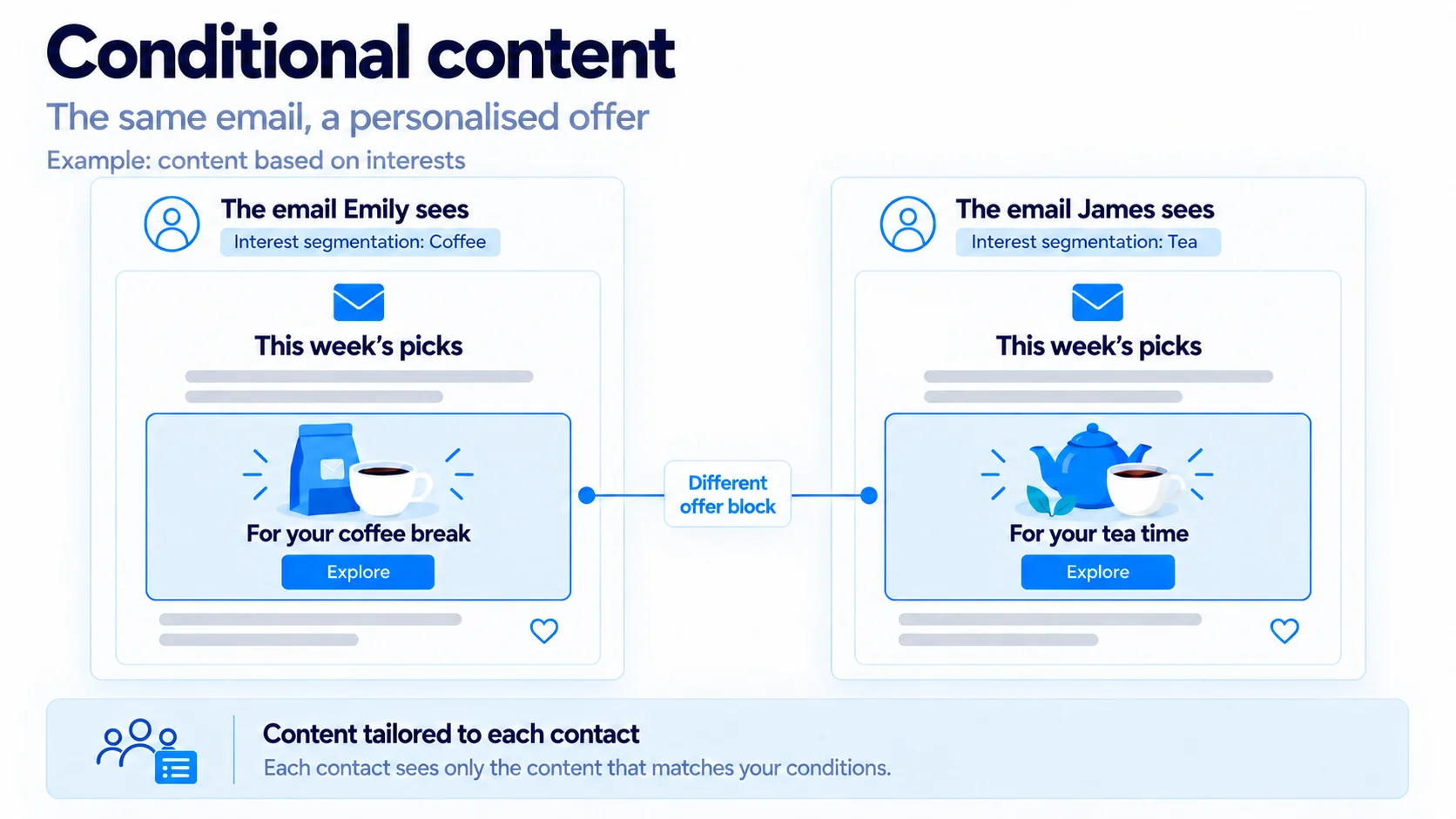
You can show a row of the email to certain contacts only. Contacts who do not match never receive that row. This way one campaign sends different content to different people.
Add a condition to a row
Select the row
Move the mouse over the row and click the Row label that appears on its left. The left panel switches to the row's settings.Open Show to
Change the choice from Everyone to Contacts matching a condition. A rule line opens underneath.Build the rule
First choose the field: a contact field, a custom field, a tag, a list or a saved segment. Then choose the condition and the value. Click the value box to see the values already stored in your account.Check it in the preview with two contacts
Click Preview. Under View as, pick a contact who matches, then one who does not. The row should appear for the first contact only.
A row takes one rule. To require two things at once, create a segment first, then choose that segment in the rule.
Show different content to different contacts
Add two rows and give each its own condition. For example, show the first row to contacts with the “VIP” tag and the second to contacts without it. A contact who matches both conditions sees both rows, so set the conditions up as opposites.
An unfinished condition stops sending
If you leave the rule half done, the panel shows a warning and the campaign is not sent. Finish the rule or set the row back to Everyone.
Hiding a block by device is a separate setting. See Style the mobile version.
Frequently asked questions
What does a contact who does not match see?
They do not see that row at all. The row is taken out of their email completely; no gap is left.
Does the condition work in Outlook too?
Yes. The decision is made before sending. The email app does not have to do anything; each contact receives the email prepared for them.
Can I put a condition on a single block?
No. The condition goes on a row. To make one block conditional, move that block into a row of its own.
Related articles
Was this helpful?
Still need help?
Write to us and a person will answer.
