

Create an automation
Learn how an automation works, build an example welcome flow step by step and activate it.
An automation is a flow that sends the right email at the right time for you. You set it up once; for example, every new newsletter subscriber gets a welcome email on day one and, two days later, an email about your best-loved products. While you get on with other work, the flow runs on its own for each new contact.
How an automation works
Every automation has three parts:
- Trigger: the event that brings a contact into the flow. For example, joining a list, a birthday coming round or clicking a link in your email. All the options are in Choose an automation trigger.
- Steps: what happens to the contact, in order. Sending an email, waiting, splitting contacts by what they did, adding a tag or letting your team know.
- Activation: until you click Activate, the flow is a draft and no email goes out.
Each contact moves through the flow at their own pace. A contact who joins on Monday gets the second email on Wednesday; one who joins on Thursday gets it on Saturday.
How to start
The Automations page offers three ways in:
- Start from scratch: an empty canvas opens. Give the automation a name and click Create; your contacts never see this name.
- Ready flows: you start with a flow that's already built. Welcome email series sends three emails to someone who joins a list. Win back sleepers starts with a segment and follows a different path depending on whether the contact opens the email. Hot lead follow-up tags a contact who clicks a link and sends a follow-up the next day. Cart reminder starts with a cart event from your store; the store connection needs to be set up separately. Use places the flow on the canvas, and you can change every part of it.
- Create with GrafAI: describe the flow in a sentence or two and GrafAI plans it. It shows if GrafAI is on for your account: Create an automation with GrafAI.
Example: a welcome series for new subscribers
When someone joins your newsletter, you want to send them two emails, let your sales team know if they click through to your pricing page, and send a reminder to those who don't. Here's how to build it:
Click Start from scratch
TypeWelcome new subscribersin Name and click Create. The canvas opens with the trigger card at the top.Choose the trigger
Click the trigger card. In the right panel, choose Contact joins a list under Trigger type and pick your newsletter list in List.Add the first email
Click Send email in the left panel; the step is added under the trigger. Click the new card on the canvas to open its settings in the right panel. Choose Create a new email and fill in the from name, from email, subject and preview text. Edit email opens the email editor; prepare your welcome email there.Wait two days
With the email card selected, click Wait and then click the new card. Type2in Duration and choose Days in Unit.Add the second email
With the wait card selected, add another Send email step and click its card. In this email, talk about your products and include a link to your pricing page.Wait a day, then split out the clickers
Add another Wait step (1 day), then a Condition. In the condition, choose Clicked a link in the email?, pick the second email in Email and the pricing page link in Which link. The flow splits into Yes and No.Bring your team in on the Yes path
Click + on the Yes path, add theHottag with Tag actions. If the tag isn't in the list, create it under Contacts first. Then add a Notify team step with your sales team's address. Leave a short note such as{{first_name}} looked at pricing, call them today.Add a reminder on the No path
Use + on the No path to add a short reminder email. Each path ends with End flow on its own.Activate
Click Activate and confirm in the window. If something is missing, a red indicator appears in the top bar; click it to go to the card that needs attention. Otherwise the automation becomes Active; from now on, everyone who joins the list enters the flow.
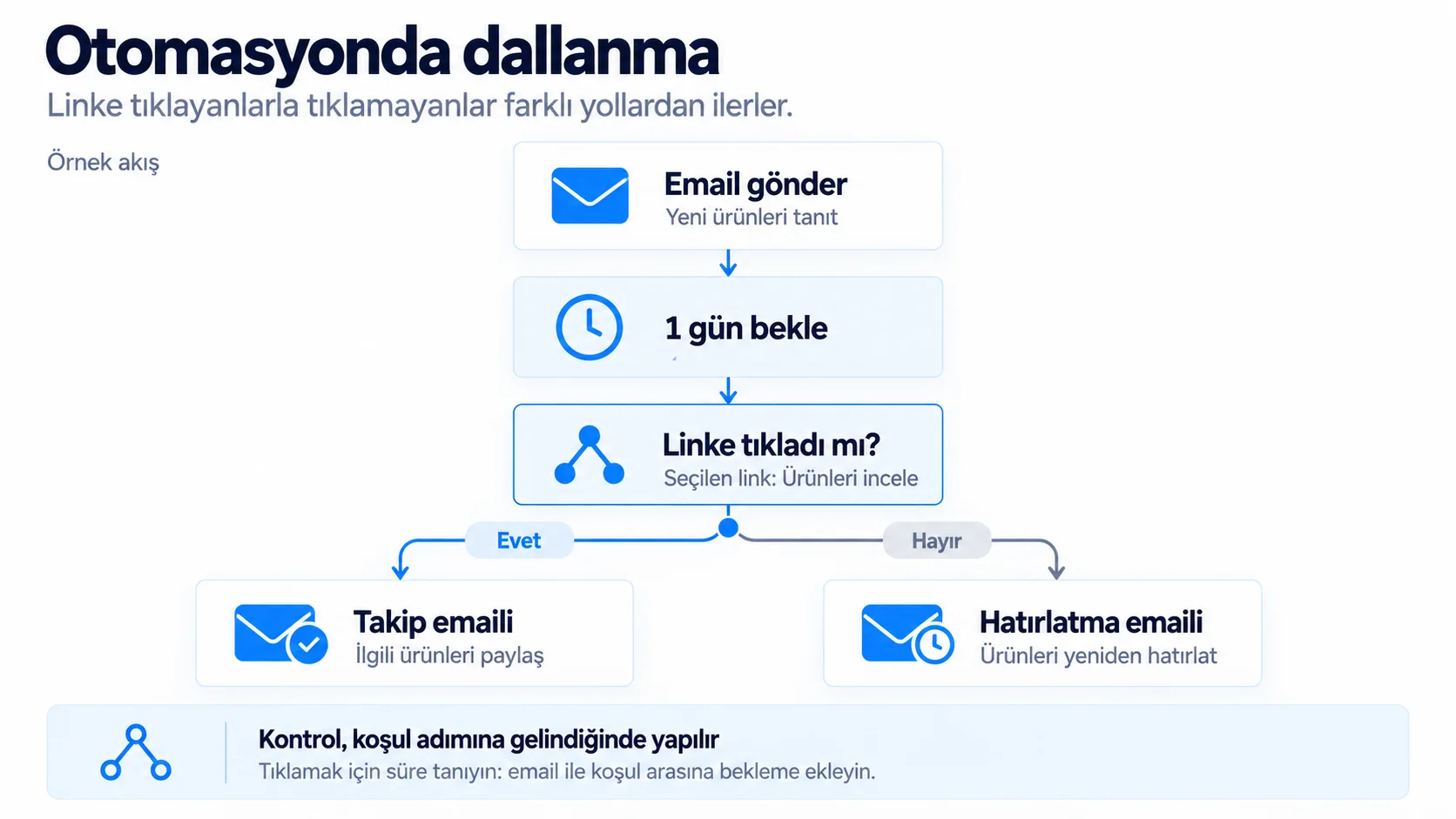
A condition checks at the moment the contact reaches it; it doesn't wait for a future click. That's why a Wait between the email and the condition gives people time to read.
The steps you can use
Steps sit in groups in the left panel. Click a step and it's added just below the selected card, or under the trigger if no card is selected. To add it somewhere specific, click the + between two cards or drag the step there. Click the new card to open its settings; an email step with missing settings shows Needs attention.
| Group | Step | What it does |
|---|---|---|
| Messages | Send email | Sends the contact an email. |
| Timing | Wait | Waits for a set time: at least 5 minutes, at most 90 days. |
| Timing | Wait until | Waits until the date and time you choose, such as an event day. If the date has passed, the contact moves on straight away. |
| Logic | Condition | Splits contacts into Yes and No depending on whether they opened an email or clicked a link. |
| Logic | A/B split | Splits contacts at random into paths A and B, to try two different emails. |
| Logic | Split by segment | Splits the path depending on whether the contact is in a segment. |
| Audience | List actions | Adds the contact to a list, removes them or moves them to another list. |
| Audience | Tag actions | Adds or removes a tag. |
| Audience | Update field | Writes a value into one of the contact's fields. |
| Audience | Add to block list | Adds the contact to the block list; no email reaches them in future. |
| Flow | Notify team | Emails your team when a contact reaches this step. Nothing goes to the contact. See Notify your team from an automation. |
| Flow | End flow | Takes the contact out of the automation. It's added at the end of every path on its own; you don't add it from the panel. |
In a Send email step you can also pick a ready draft under Campaign drafts. The draft you pick is reserved for this flow and leaves your campaign list.
Activate and update
Activate creates the first version of the flow and a snapshot of each email as it is at that moment. You can add steps to an active flow and change their settings. To delete a step, or to change an email step's email, subject or sender, click Pause in the top bar first. Your changes don't affect the flow until you publish them; when you're ready, click the button that counts the waiting changes, for example Publish 2 changes. Contacts already in the flow carry on in the version they started; new contacts follow the new version. MailGraf saves your changes as you work.
Starter allows 2 active automations at the same time. Pro and the monthly plan have no limit. Paused flows count towards this number. If your account has its own limit, you see it when you activate. To follow how the flow is doing, read Monitor automation performance.
A paused contact skips the email
If a contact's emails are paused, any email step they reach during the pause is passed without sending and they move on through the flow. The skipped email isn't sent later when the pause ends.
Frequently asked questions
Do contacts already on the list enter the automation?
No. An automation only counts what happens after you activate it. Contacts who join the list later do enter.
Can I edit an active automation?
Yes. You can add steps to an active flow and change their settings. To delete a step, or to change an email step's email, subject or sender, pause the automation first. Your changes don't affect the flow until you click the button in the top bar that counts the waiting changes, for example Publish 2 changes. Contacts already in the flow carry on in the version they started.
Why won't my automation activate?
Something in the flow is missing, such as a list that isn't chosen, an empty email or an unverified sender. A red indicator then appears in the top bar; click it to go to the first card that needs attention. If you have reached your active automation limit or your company details are missing, MailGraf tells you in a message.
Can a contact enter the same automation again?
With most triggers, a contact enters once. A date trigger brings them back every year, and a custom event trigger does so depending on your setting. See Choose an automation trigger for details.
Related articles
Was this helpful?
Still need help?
Write to us and a person will answer.
