

Manage email preferences
Set up email topics, add a profile link to your emails and send to contacts who have chosen to hear about each topic.
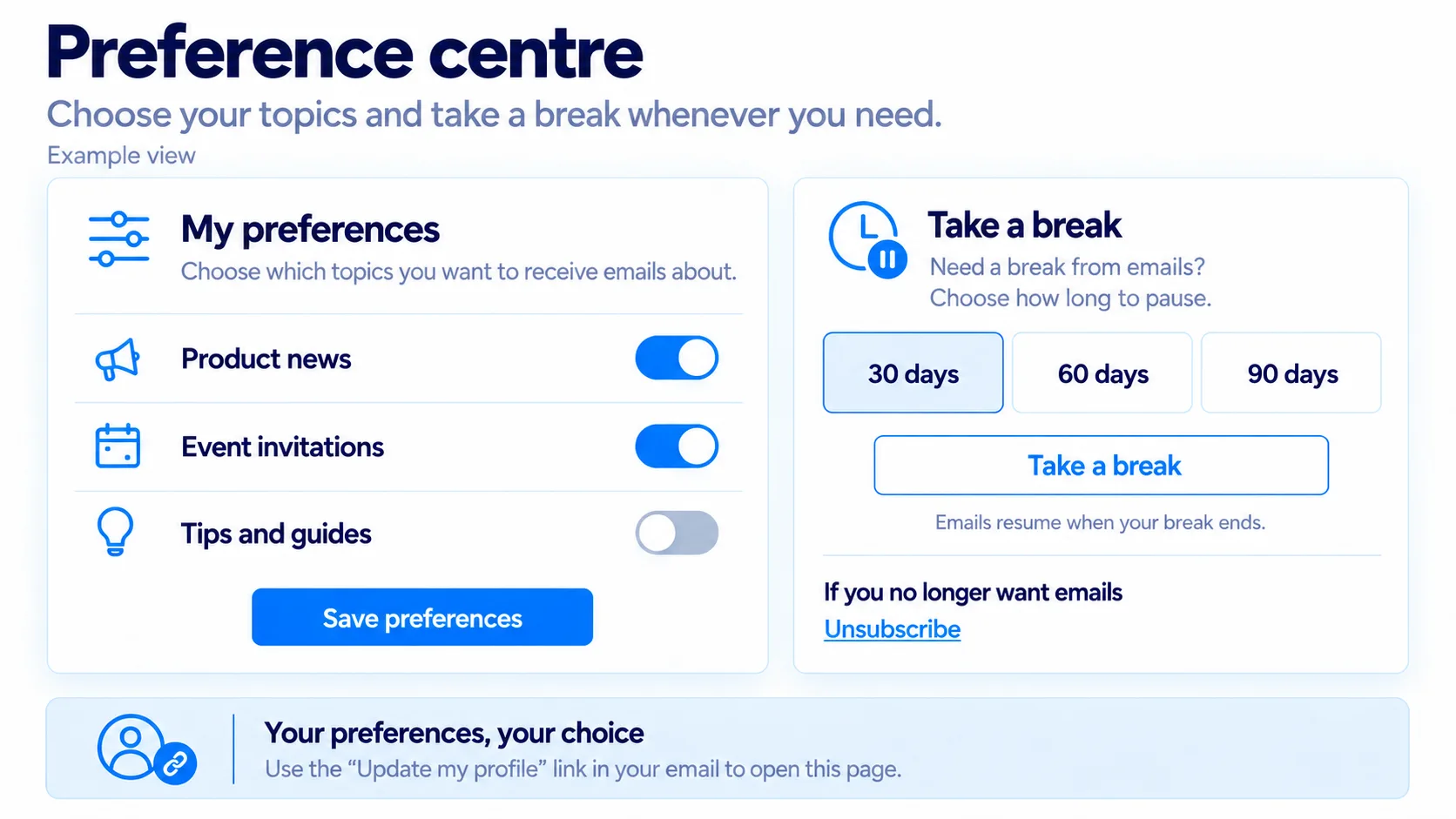
Let contacts choose the topics they want to hear about, update their details or pause your emails for a while. Each contact reaches the page through their own link in your email.
Create your topics
Open Contacts > Preferences
Click New preference. You might create separate preferences for product news and event invitations.Describe the preference
Enter the name contacts will see in Name. Add a Description if it helps explain the topic. Preferences with the same Group appear together.Choose visibility and save
Leave Show on the page on so contacts can choose the topic. Hidden preferences remain available for segment rules but do not appear on the page.
Names and descriptions are shown in the language you write them in. They are not translated automatically.
Set up the profile page
Under Update my profile page, write your intro and choose which details contacts can change: first name, last name or email address. Click Save page settings, then Preview to check the page.
An email address changes only after the contact confirms the link sent to their new address. Until then, the existing address stays in use.
Add the link to emails
Under Link to the page, click Copy tag. In your email editor, use {{profile_url}} as the link address for Update my profile.
New email designs show Update my profile on the left and Unsubscribe on the right, side by side with a separator. Turkish emails use Bilgilerimi güncelle and Abonelikten ayrıl.
Add the profile link yourself if an older template lacks it. Designs that already contain both links adopt the updated layout when opened in the editor. Keep the unsubscribe link too. Send a test email to check the footer in your inbox.
Send by preference
A preference can be Yes, No or Not set. Not set means the contact has not made a choice; it does not mean they agreed.
To send an event invitation only to people who want one, create a segment with Event invitations = Yes. Select that segment on the campaign's Audience step. See Create a segment.
Choose the audience for each topic
Creating a preference does not create a list or automatically filter every campaign. Use the matching preference rule when sending topic-specific emails.
You can see each contact's answers on the Preferences tab in their contact profile.
Understand paused emails
Contacts can pause emails for 30, 60 or 90 days. Campaigns skip them during that period. They can receive future emails when the pause ends; missed campaigns are not sent afterwards. The contact can end the pause early through their own link.
If a contact asks you by phone or email to stop sending for a while, you can set the pause too: select the contact on the Contacts page or open their profile, then choose Contact actions > Pause and a length. End a pause you set at any time with End pause. A pause the contact set themselves cannot be changed from the panel. See Use the All contacts screen.
A pause is different from unsubscribing. An unsubscribed contact must confirm that they want to subscribe again.
Topic preferences depend on your plan. Updating profile details and pausing emails are available on all plans. See Compare plan allowances.
Related articles
Was this helpful?
Still need help?
Write to us and a person will answer.
