Email Templates: How to Choose and Use One
An email template is a ready-made layout for an email. The header, content blocks, buttons and footer are already in place, and you swap in your own words and pictures.
A yoga studio in Hereford that emails its members every month can use the same template all year. The logo, colours, story blocks and footer stay put; only the news changes.
Choose email templates by their structure, not by how pretty the preview looks. A good one reads in one column on a phone and makes sense with the pictures off. It asks for one main click and lets you edit every block.
What counts as an email template
Four different things go by the name email template. The deciding question is who receives the email: one person, or a whole list.
| Kind | What it holds | Good for | Where it stops |
|---|---|---|---|
| Gmail or Outlook template | A saved message: text, sometimes formatting and attachments | Replies you send again and again, one person at a time | No list, no unsubscribe link, no report |
| Template in an email platform | A layout of editable blocks with a footer | Marketing email templates for newsletters and campaigns sent to a list | It lives inside that platform |
| Gallery file (HTML, the email's code) | The code of one email, with linked or embedded pictures | Importing into the tool you send from | You check the code, pictures and footer yourself |
| Design tool template, such as Canva | A visual design you export | A one-off email with strong visuals | It needs an email platform to reach a list |
Gmail keeps its templates under More options in the compose window, after you turn them on in Settings (Google Help).
Outlook has Mail Templates for whole messages and the My Templates add-in for short snippets. Both need a qualifying Microsoft 365 subscription (Microsoft Support).
From here on, template means the second kind. A Canva design reaches a list through its HTML and images ZIP (a compressed folder). You then edit it as an HTML email rather than as blocks, with the steps in sending a Canva newsletter with MailGraf.
What makes a good email template
Six checks show whether a template will hold up in real inboxes, and you can run them before you write a word. The photos and colours in the preview are the parts you will replace anyway.
| Check | What to look for | Quick test |
|---|---|---|
| One column on a phone | Content stacks into a single column, with text you can read without zooming | Open the mobile preview |
| Works without pictures | The headline, offer, date and button are live text, not part of an image | Turn pictures off in the preview or in your test inbox |
| Readable contrast | Dark text on a light background, or the reverse, in light and dark mode | Run the smallest text through a contrast checker |
| One main button | One action stands out; other links are smaller | Say in five words what the reader should click |
| Editable blocks | Every section is its own block you can move, copy or delete | Delete one block and see whether the layout holds |
| A complete footer | Business name, contact address, unsubscribe link | Look for sample text left by the template maker |
Pictures do not always load. Out of the box, classic Outlook waits for the reader's permission before downloading them (Microsoft Support).
Gmail shows images automatically, but holds them back when it thinks a sender or message is suspicious (Google Help).
A template whose offer sits inside one large picture reaches those readers as an empty box, so keep the words in text blocks.
For contrast, the Web Content Accessibility Guidelines (WCAG) set the minimum. At level AA, normal text needs a ratio of at least 4.5:1 and large text 3:1 (W3C, updated September 2026).
Pale grey on white fails that test, and so does white text on a light brand colour.
Dark mode changes the background behind your design. Outlook's black theme shows messages on a black background (Microsoft Support).
Apple Mail on a Mac does the same in dark appearance when Use dark backgrounds for messages is ticked (Apple Support). A dark logo on a transparent background can vanish there, and the email newsletter design guide shows two fixes.
In the UK, the footer is the block the law cares about. It carries the two things regulation 23 of PECR (the Privacy and Electronic Communications Regulations) asks of a marketing email: who sent it, and an address for asking them to stop.
Consent to email someone in the first place is a separate matter, covered in UK GDPR and PECR.
Free email templates: what to check before you use one
Free email templates come from three places: the library inside an email platform, galleries that hand out HTML files and design tools such as Canva.
A library template is ready to edit where you send from. A gallery file needs a closer look, because nobody has tried it in your platform.
Before you use a downloaded file, look for five things:
- Where the pictures live. Pictures linked from the template maker's server can vanish when they tidy up. Upload them to your own media library.
- Leftover sample text. Sample addresses, phone numbers and Latin filler hide in footers and in picture descriptions.
- Tags from another tool. A file built for one platform may carry its merge tags, such as
*|FNAME|*, which print as raw text anywhere else. - An unsubscribe link that works. A gallery file can only hold a placeholder; your sending platform has to supply the real one.
- The weight of the code. Long code gets cut off in Gmail; the next section shows what makes code long.
How heavy is a template's code?
Words barely move a template's size; generated code and embedded photos do. Gmail hides the end of a long email behind a "View entire message" link, and Google's help pages do not say at what size.
MailGraf's checks warn once an HTML email passes 100 KB, so we used that as the line.
On 25 October 2026 we built one sample newsletter. It has a logo, a hero picture, three stories with a picture and a button each, and a footer.
We wrote it by hand, then rebuilt it with MJML (an open-source framework for responsive email), version 4.18. We measured both HTML files before any link tracking.
| The same newsletter | HTML size |
|---|---|
| Written by hand, 3 stories | 6.3 KB |
| Written by hand, 8 stories | 12.8 KB |
| Built with MJML, 3 stories | 23.9 KB |
| Built with MJML, 8 stories | 46.2 KB |
| Built with MJML, 20 stories | 99.7 KB |
| Written by hand, 3 stories, one 60 KB photo embedded in the code | 86.3 KB |
Each extra story added about 1.3 KB by hand and 4.5 KB through the framework, so the framework version needed about 20 stories to reach the line.
MailGraf's drag and drop editor also compiles its emails with MJML. The framework is not the problem in itself: the number of stories and embedded pictures decides the weight.
A picture linked from a web address adds only its address to the HTML; the inbox fetches the file separately.
An embedded photo is different. Embedding stores a picture as base64 text, four characters for every three bytes. Our 60 KB photo became 80 KB of code: most of the way to the line in one picture.
If you bring a downloaded file into MailGraf with Import HTML, the checks flag images without a description and designs wider than 700 px, along with the size warning.
Convert tags for MailGraf turns tags from tools such as Mailchimp into MailGraf tags. Upload images moves embedded or zipped pictures into your media library (Import an HTML email).
An imported file stays an HTML email that you edit as code. Brand settings, rows and Save as template belong to the drag and drop editor. A layout you will reuse every month is better rebuilt there from a starter layout.
Match the template to the email's job
The right layout follows the job the email has to do. Count the decisions you want from the reader: that is the number of main buttons.
| Layout that fits | Main action | |
|---|---|---|
| Monthly newsletter | Logo, short intro, two or three story blocks, footer | One story leads; the others get smaller links |
| Announcement or event | Banner, date and place in text, a short paragraph | One button |
| Product email | Product picture, name, two or three facts, price | One button per product |
| Note from the owner | Plain text, a signature, perhaps one photo | One link, or an invitation to reply |
The yoga studio would use a newsletter template for its monthly timetable and news. Its weekend retreat would go out on its own as an announcement, so the booking button would not compete with the class news.
How to adapt an email template to your brand
Adapt a template in a fixed order: brand first, content second, checks last. The checks come last because any earlier step can break something.
- Set your brand once. If your platform has brand settings, put the logo, colours, fonts and button style there, not in one email, so every new design starts with them.
- Replace every picture and its description. The description, or alt text, is read out by screen readers and shows when a picture does not load. A forgotten sample description still says "product image 1".
- Rewrite the sample text in your own voice. Keep the shape, such as a short headline and a two-line intro, but not the words. A first name needs fallback text for contacts without one.
- Point every button and link at your own pages. A button left on the template maker's address sends your readers to a stranger's website.
- Fill the footer. Put in your own business name and address.
- Save it as your own template before the first send. Next month you start from a version you have tested, not from the gallery file.
- Send a test to yourself. Read it on a phone, with pictures off and in dark mode: the three views from the checks above.
Create and save an email template in MailGraf
In MailGraf, a design starts on the Design step of a campaign. It offers Drag and drop editor, Import HTML and Import from Canva. With GrafAI on, Create with GrafAI sits above them.
Below these come Starter layouts and Your templates. The four starter layouts are Product launch, Announcement, Plain email and Two products.
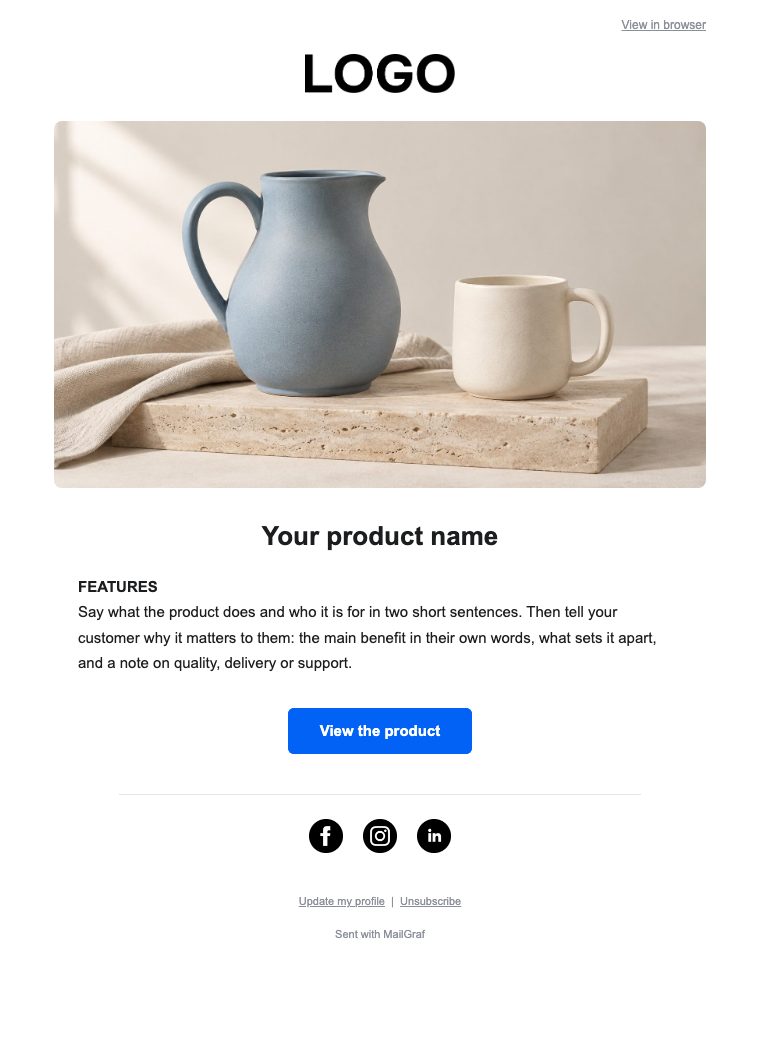
This is Product launch as the gallery shows it, before any brand settings. The logo, photo and words in it are placeholders you replace.
For a newsletter with several stories, open Rows in the editor and add pre-made rows. They come in groups: Header, Text, Cover, Image and text, Products, Promotion, Event, App and Quote.
Set your brand settings before you pick a layout. They hold the logo, heading and body fonts, button colours and up to 20 brand colours used by new designs. Designs made earlier keep their look.
When the first issue is right, click Save as template in the editor's top bar and name it. It appears on the Email templates page.
There, Create campaign starts a new draft from it, and Use in a draft puts it into a draft you already have (Create and use an email template).
The footer row is locked and cannot be deleted. It carries your company address and the Update my profile and Unsubscribe links. The Review step will not send a campaign without an unsubscribe link.
For a monthly newsletter with a fixed layout, brand and footer, open a MailGraf account and build the first issue from a starter layout.
Originally published: Oct 29, 2026


Professional email marketing platform.

Don't miss out
Get the latest email marketing tips and exclusive updates.